Where to find it
Client: select Send a message on a website profile or Message the artist on a work. Artist or studio: open Messages and select a client conversation. An appointment also has a Discuss appointment action.
Step by step
- For a client’s first enquiry, select Open conversation in the browser workspace or Send a message in the app. Artists and studios select an incoming conversation under Messages.
- To read an existing conversation, select the participant’s name on the left in the browser, or Open beside their name in the app. Check whom you are replying to.
- Enter Message and select Send. If a work is attached, check its title. Select Write without the work to omit its link from the next message.
- Check that the text appeared in the conversation. If sending failed, check Latest messages first. While the same conversation remains open and its retention period has not expired, retry Send with the unchanged text and the same work: the service first checks whether the earlier send was saved and confirms it without a second message. Select Earlier messages to read older ones.
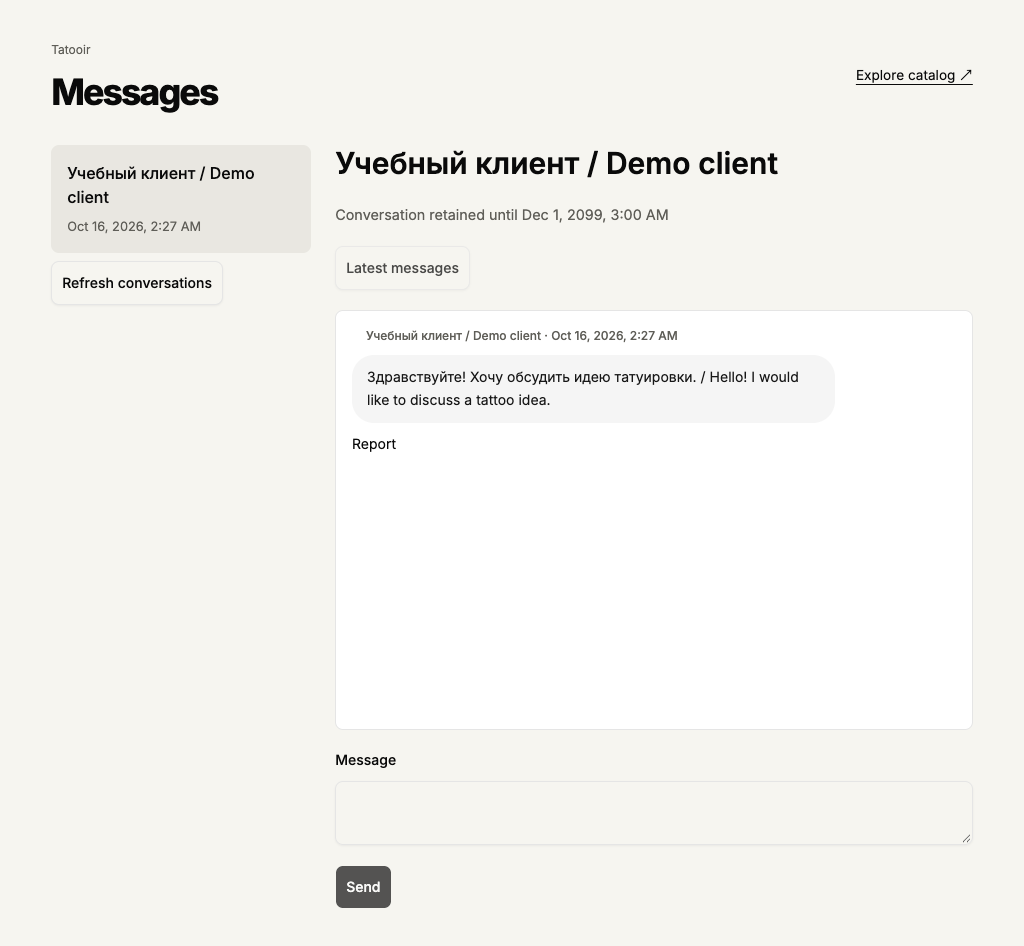 Enlarge screenshot
 Buttons and fields
- Open conversation / Send a message / Open
- A client starts a conversation with Open conversation in the browser or Send a message in the app. Open selects an existing app conversation. These buttons do not send message text.
- Send
- Sends text to the selected participant. The limit is 5000 characters, including spaces and an attached work link. Shorten a longer message or send it in parts.
- Write without the work
- Removes the work title and link from the next message. You can send your own text on its own.
- Earlier messages / Newer messages
- Move through history. Reading an older page does not automatically switch you to new replies.
- Latest messages / Refresh conversations
- Show the latest conversation page or refresh the participant list. They do not send your draft.
- Report
- Opens a report about a specific message. Describe the issue; send ordinary appointment questions to the participant.
- Previous / Next / Close discussion
- In the browser, Previous and Next page through participants, not the messages in a conversation. In the app, Close discussion returns from an appointment’s conversation to appointments; it does not delete the conversation.
How to tell it worked
Sent text appears in the selected conversation. A conversation alone does not confirm an appointment, money transfer or sketch rights.
Things to know
- Participants, moderators and administrators can read a conversation. Its retention date is shown above the messages. Keep important agreements separately: conversations are not stored forever. After your account type changes, refresh the conversation list. A load already in progress may return an earlier page; refreshing again reads data with your current permissions.
- A studio can report a message in an appointment conversation it shares with its artist. After the artist leaves, this right remains for the earlier shared conversation while the studio still has access.
- While the conversation remains available, retrying confirms an already saved message even after its attached work is hidden. If it was not saved, an unavailable work cannot be attached to a new message: check the conversation first, then use Write without the work if needed. Changing the text, work or participant starts a different send; reloading loses the unfinished attempt’s details.
If something goes wrong
The text is still in the field. Was it sent?
Check the messages and send result. A draft is retained after an error. Do not change participants or repeatedly send while the action is in progress. Reloading can lose an unsaved draft.
I switched accounts while sending.
The app does not send an action from the new account if it was still awaiting a check in the previous account. Open the conversation in your current account, check the latest messages and only then send again.
The retention period expired while sending.
After retention ends, new messages are not saved even if the conversation remained open. Keep any needed draft separately and refresh the conversation list. An old notification does not restore an expired conversation.