Where to find it
Website: a professional’s profile → Choose a time, or a time under Available times. App: the professional’s card → Book an appointment. Find your requests under Appointments.
Step by step
- Open the intended artist or studio. If you want a specific team artist, first open that artist’s card in the studio roster.
- On the website, select Choose a time or an available time in the profile. Sign in as a client if asked. In the workspace, check the professional, date, start and end again.
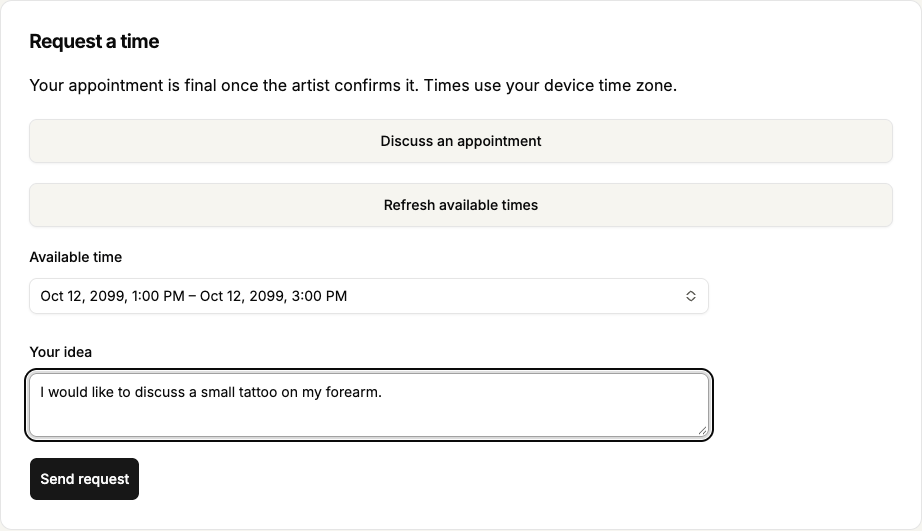
- In the browser workspace, choose Available time, fill in Your idea and select Send request. In the app, fill in Your idea, then select Request a time: … or Request the selected time: … with the intended date. That button sends the request immediately.
- Open Appointments and wait for the artist’s confirmation. If no time suits you, select Discuss an appointment and message the artist. Before visiting, check the status, address and agreed price.
 Enlarge screenshot
 Buttons and fields
- Available time
- In the browser workspace, this is a list of available intervals to choose from. The app has no separate select field with this name: each option is a button showing its date and time.
- Your idea
- Briefly describe your tattoo idea, for example the design, body placement and approximate size. The note is attached to your request.
- Send request / Request a time: … / Request the selected time: …
- Send request submits the chosen interval in the browser workspace. In the app, Request a time: … and Request the selected time: … submit it. The visit is not final until the professional confirms.
- Discuss an appointment
- Opens the conversation flow for this professional. It does not send a message automatically or reserve a time.
- Refresh available times
- Checks available intervals again. If the previous selection has disappeared, choose another time.
- Active / History / Refresh appointments
- Show current requests, completed and closed appointments, or reload the current list. Use Next when there are more pages.
- Cancel appointment / Cancel
- Cancels your future active appointment. Participants can see the cancellation. Normal cancellation is unavailable after the session starts.
How to tell it worked
A pending status appears after sending, followed by confirmation or a decline after the professional decides. Agree on session payment directly; Tatooir does not collect it.
Things to know
- Public website times use Moscow time. The browser workspace and app use your device’s time zone. If you are in another time zone, the displayed hours may differ: check the date and time in the workspace before sending.
- Emails about requests, confirmations, declines, cancellations and reschedules reflect the state when sent. Choose Open appointments (Открыть записи in the Russian email) and check the current status. Email times use the provider city’s time zone; your account may display your device time. The original time remains until a reschedule is accepted. Reminders are intended for 24 hours and one hour beforehand, but delivery depends on the service’s email setup; a delayed day-before email may be skipped in favour of the hourly one. Check the appointment before visiting even if no email arrived.
If something goes wrong
The selected time is no longer available. Is my appointment lost?
First check your appointment list: your previous submission may have been saved. If it is absent, refresh availability and choose a new interval. Check the result before creating more requests.