Where to find it
Profile in the browser and Public profile in the app. Personal details in the account menu do not replace this public profile.
Step by step
- Enter the artist’s name or studio name, city and styles. Use About to describe your experience and how you work with clients.
- Enter a public phone number using +7 and ten digits. A studio must provide an address. A website is optional; if used, enter its full https:// link.
- Leave the page address empty to create one automatically. If an address already exists, clearing the field does not replace it with a new one when saved.
- Select Save or Save profile, then separately Submit for review. After rejection, address the reason, save and submit again.
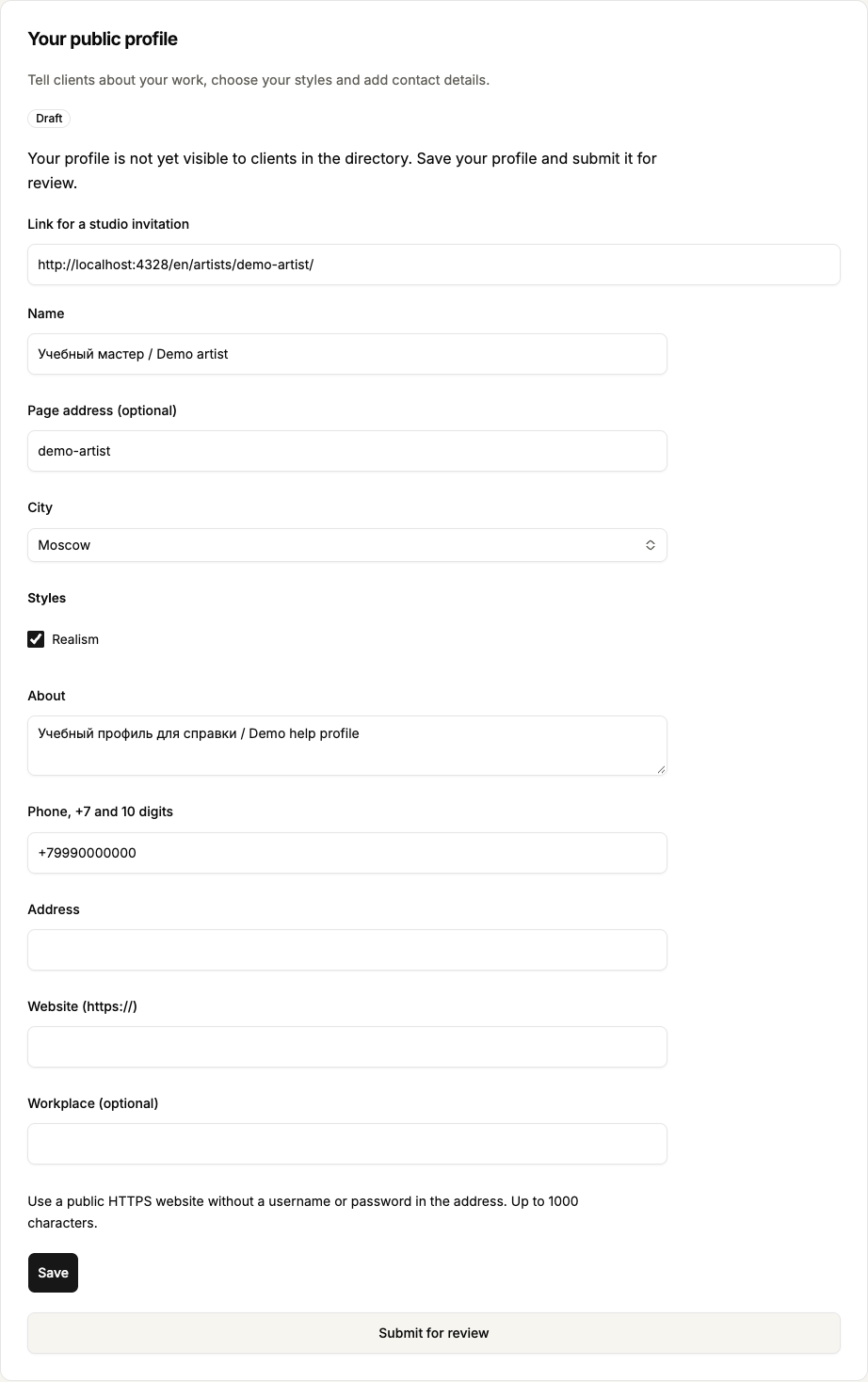 Enlarge screenshot
 Buttons and fields
- About
- Describe your experience and approach. Clients can read this text after publication.
- Phone, +7 and 10 digits
- A number clients can use to contact you. In the browser: Phone, +7 and 10 digits; in the app: Phone +7…. For example: +79990000000. Visitors can see the number after publication.
- Address
- Enter the place where clients visit. A studio must fill this in; the app labels it Studio address (required). An independent artist may leave it empty.
- Website (https://)
- An optional website link beginning with https://, up to 1000 characters. In the app the field is Website https://…. Do not include a username or password in the link.
- Name / City / Styles
- Help clients find and recognise you. You can choose several relevant styles.
- Page address (optional)
- Sets part of your profile link. A custom address uses lowercase Latin letters, digits and hyphens. Changing it changes future profile links.
- Workplace (optional)
- An independent artist may state a workplace or leave it empty. If you belong to a studio team, clients see the studio affiliation instead of this text.
- Save / Save profile
- Select Save in the browser or Save profile in the app. This saves what you entered. Submitting the profile for review requires the separate Submit for review action.
- Submit for review
- Submits a saved profile to staff for review. If you edited fields, save them first. You do not need to submit again while the profile is already being reviewed.
- View profile
- In the browser workspace, opens the public profile when it is available to visitors. If the link is absent, read the visibility explanation beside the profile state.
- Link for a studio invitation
- For an artist invited by a studio. In the browser select and copy the complete link in the field; in the app press and hold the link text to copy it. Share it with the studio. The profile need not be published yet.
How to tell it worked
Saving shows current details; submission shows the review state. An approved profile without placement is still not shown to clients.
Things to know
- The phone number, description and address become visitor-facing after publication. Do not put private documents or secrets in public fields. Website links must be public and contain no username or password.
If something goes wrong
Fields are visible but saving or submitting is unavailable.
Wait for data refresh, resolve load failures and save edits. Hidden or deleted profiles and account-type mismatches restrict normal editing; the profile displays an explanation.