Where to find it
Portfolio in your account. To manage a studio artist’s work, first select that artist in Team & studio.
Step by step
- Save your profile first. In the browser open Portfolio and select Add work. In the app the Add work form is already displayed in Portfolio.
- Enter the title, styles and description of up to 500 characters. In the browser choose Photo or video, then Save. In the app select Choose photo or video or Camera, wait for File uploaded, then select Add.
- New work is reviewed. To edit saved work select Edit, make changes and select Save. Close without saving does not save your edits.
- To move work earlier, select Move earlier in the browser or Move up in the app. To remove it, use Move to trash for 14 days in the browser or Move to trash in the app. Restore can return it within 14 days.
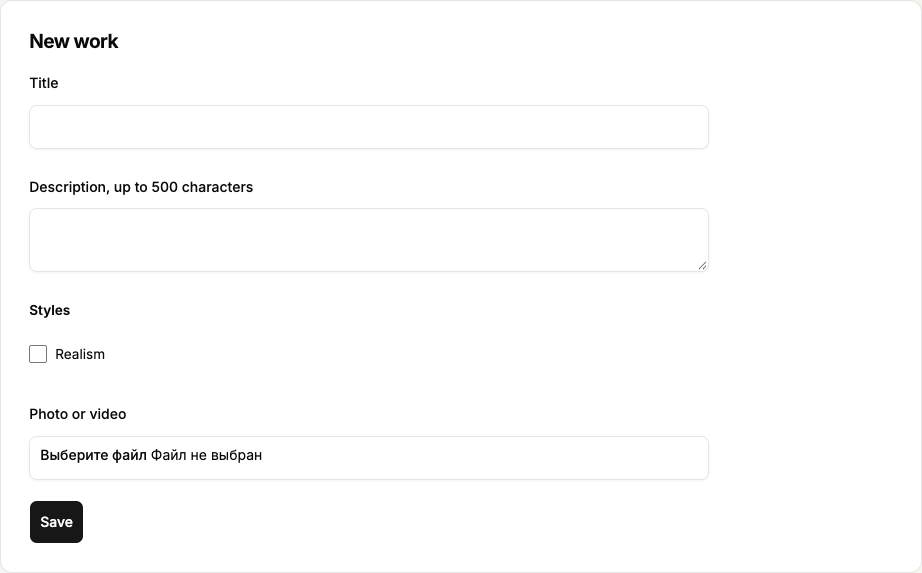 Enlarge screenshot
 Buttons and fields
- Title / Description / Styles
- A title identifies the work. Description is a caption of up to 500 characters; styles help discovery. The new-work form on the website labels the caption Description, up to 500 characters.
- Tattoo / Sketch
- In the browser, Portfolio is for tattoo work; add sketches under Sketches. In the app both are added in Portfolio: use Tattoo · switch to sketch or Sketch · switch to tattoo to choose the type.
- Save / Add
- Save in the website form creates the work after upload. The app’s submit button is Add. Selecting a file alone does not create a work.
- Add work / Close form
- Opens or closes work creation. Closing does not publish entered content.
- Photo or video
- The browser accepts JPEG, PNG or WebP up to 10 MB, or MP4 or WebM up to 100 MB. In the app use Choose photo or video or Camera and allow photo access if asked. Sketches use images only.
- Edit / Close without saving
- Opens the editor or leaves it. Closing without saving does not preserve an unfinished caption.
- Clear selected file
- Clears a new replacement that has not been saved. It does not remove the work’s existing saved file.
- Move earlier
- Move earlier in the browser or Move up in the app moves work up your portfolio. It does not buy promotion.
- Move to trash for 14 days / Restore
- Move to trash for 14 days in the browser or Move to trash in the app removes work from display. Restore returns it within 14 days while available. Files may be permanently removed afterwards.
- Resubmit
- Resubmits a corrected rejected work. Save edits first.
How to tell it worked
The work is saved with a visible state. A new or replaced file is reviewed; editing only the caption does not restart review.
Things to know
- A portfolio supports 500 active works. Public visibility of approved work also depends on its creator’s profile visibility. A sold sketch’s file cannot be replaced.
If something goes wrong
I selected a file but no work appeared.
Selecting a file does not save a work. Check upload and save results, and refresh the list after a failure before retrying. Keep your original until you have confirmed saving.