Where to find it
In the artist’s or studio’s own workspace: Appointments → External calendars. Connecting is optional; working hours can be added without it. This block is not shown while managing a selected team artist.
Step by step
- For Google select Connect Google. On Google’s page choose your account and allow calendar access.
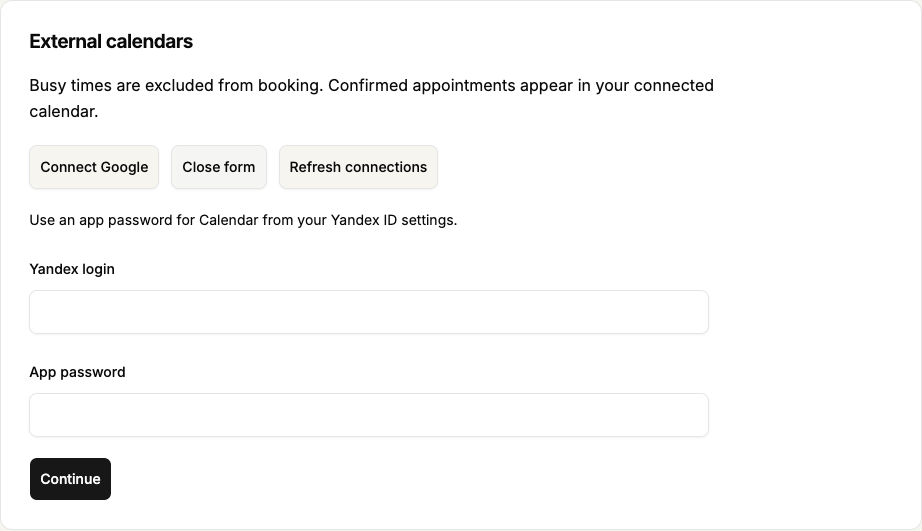
- For Yandex select Connect Yandex. Enter Yandex login and a separate Calendar App password from Yandex ID settings, then Continue. Do not use your normal email password here.
- After connecting, choose a calendar that allows event changes under Your calendar. Select Choose calendar and wait for the result.
- Use Refresh busy times to check occupied hours. To disconnect, select Disconnect, read the message and confirm Disconnect calendar. If you change your mind, choose Keep connected.
 Enlarge screenshot
 Buttons and fields
- Connect Google / Connect Yandex
- Start the selected connection. If these buttons are absent, connection is unavailable in this workspace. You can still add available times yourself.
- Yandex login / App password / Continue
- Use a separate Calendar app password. Do not put your ordinary mailbox password in the app-password field.
- Refresh connections / Refresh calendar list
- Check saved connections or available calendars. They do not create a session appointment.
- Your calendar / Choose calendar
- Select which eligible calendar to use. Replace an unavailable choice with a working one rather than resaving it.
- Refresh busy times
- Starts a busy-time check. Wait for the result; new bookings may be blocked while it runs.
- Disconnect / Disconnect calendar / Keep connected
- Opens confirmation, disconnects the selected link or cancels disconnection. Previously created sessions remain in that calendar.
How to tell it worked
The connection block shows its state and last update time. Occupied hours affect new bookings. Clients cannot see event titles or participants.
Things to know
- If the calendar reports an error, do not promise availability until it is resolved. Check access permissions. If you manually changed an event in Google or Yandex, refresh busy times and check the time again.
- Confirmed appointments are added to the external calendar in the background and may appear after a delay. One appointment’s export error should not keep delaying all the others. Check the exact time in Appointments; a conflict with another or manually changed event is not resolved automatically.
If something goes wrong
No calendars can be selected or busy times do not refresh.
Refresh the list and check event-change permission. Reconnect after an access error. For a time conflict, inspect the event in the calendar itself; repeated refresh clicks do not resolve it. Manually changing an event, including its status or whether it blocks time, can stop its automatic updates.
Google did not finish connecting after a wait.
Permission to finish connecting or your original sign-in may have expired while the operation was waiting. The connection can also stop if the original session has ended or your account type has changed. If the workspace asks you to sign in, sign in again. Then open External calendars and select Connect Google again. Do not reuse the old return link.